


Remini - AI Photo Enhancer
4.122.18K Reviews
App Specs
- Version
- 3.7.1390.202523423
- Updated On
- License
- Free
- Downloads
- 500,000,000+
- Developer
- Bending Spoons
- Categories
- Photography
- Platform
- Android, iOS
Screenshots



 Analysis by AppCompare
I usually reach for a photo enhancer when a picture matters more than its quality: a soft face in an old family snapshot, a dim image from a night out, or a scan that has lost some crispness over time. Remini - AI Photo Enhancer is built for that kind of rescue. I find it most useful when I want a quick, visible change without learning a full editing program, though its results are best treated as an interpretation of a photo rather than a perfect recovery of missing detail.
Start with the photo you actually want to save
A useful first step is to choose an image with a clear purpose. If I am working with an old portrait, I look for a face that is at least somewhat visible and an original image that is not so tiny or damaged that there is almost nothing to work from. Enhancement can make existing clues easier to see, but an AI cannot reliably recover every detail that was never captured.
That distinction matters with family pictures. A sharper-looking face can make a memory easier to revisit, but it does not prove that every newly crisp feature is historically accurate. I would keep the untouched original and use the enhanced copy as a viewing or sharing version, especially for photographs where faithful preservation matters more than polish.
Guides and Analysis on Remini - AI Photo Enhancer
For a practical workflow, I would also make a small selection rather than sending an entire camera roll through an enhancer. Start with the pictures that are genuinely difficult to view, compare the outputs, then decide whether the improvement is worth keeping. This makes it easier to spot when the app has helped and when it has merely made an image look more processed.
Follow the image from selection to comparison
The opening flow is straightforward: choose a photo from the gallery or take a new one, then let the app process it. That simplicity is a real advantage when I am trying to improve one image quickly. I do not have to begin by adjusting a row of sliders or learning what each control does.
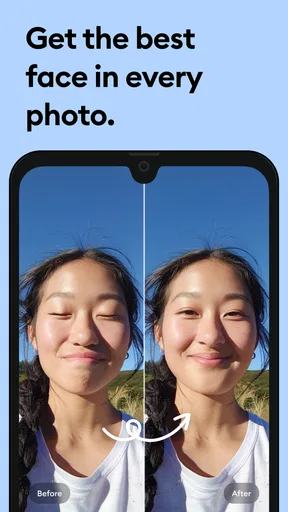
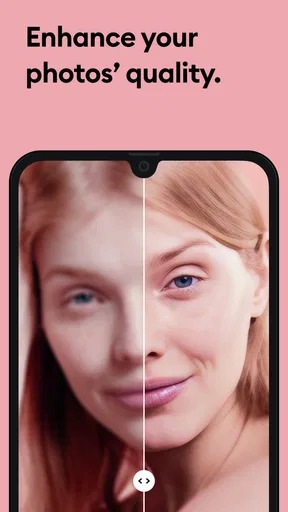
After processing, the before-and-after comparison is especially useful. I recommend checking the whole image first, then looking closely at faces, hair, edges and background texture. A result can look impressive at a glance while introducing odd-looking detail in a small area. Comparing the two versions before saving or sharing helps me decide whether the overall change suits the photo.
For a blurry picture, my expectation is modest: the app may make the subject easier to recognize, but it cannot turn every missed focus into a genuinely sharp camera capture. The concert image in the original test improved noticeably, yet it was not perfect. That is the right way to approach this kind of tool: judge whether the photo becomes more useful, not whether it becomes flawless.
Worth Reading Before You Choose

Baby Panda World Brings Quick Play to Modern Phones, but Its Game Library Feels Busy

ESPN’s Live Game View Makes Following Close Games Easier

QuizzLand Review: A Good Fit for Short Trivia Breaks, Not Every Player

Basketball Stars: Multiplayer Is Fast, but Can It Recover When Matches Go Wrong?

WEBTOON Turns Phone Updates Into a Better Reading Routine

Link to Windows Runs on Shared Habits, Not Social Feeds
Choose the right kind of enhancement for the job
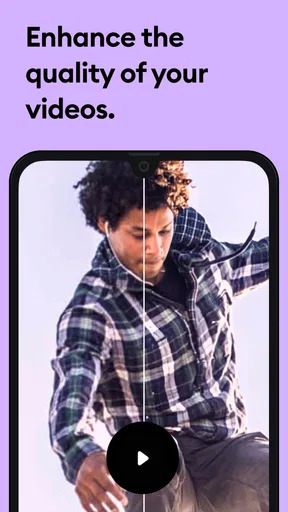
The app also offers video enhancement, colorization for black-and-white photos and artistic effects. These options make it more than a one-purpose sharpening tool, but I would still treat them as separate creative decisions. Colorizing an old monochrome image can make it feel more immediate; it also adds interpretation, so I would not mistake the chosen colors for a faithful record of what the scene looked like.
A good way to handle an important image is to keep an unedited copy, make one enhanced version, and compare them side by side before sharing. If I am preparing a family photo for a group chat, the enhanced version may be the friendlier one to view on a phone. If I am archiving it, I would preserve the original scan too, rather than letting a polished output replace the source.
For a video, the decision is similar: enhancement may be worthwhile when a clip is meaningful but visually rough, while a naturally soft or noisy recording may not benefit as much as a still portrait. I would test a short, representative clip before committing to a larger batch of material. The important trade-off is not only visual quality, but whether the finished look still feels like the moment you remember.
Where it fits among photo tools
Compared with a conventional photo editor, Remini asks less of the user. A standard editor is usually the better choice when I want precise control over exposure, color, cropping or a particular local adjustment. This app makes more sense when my main goal is to improve a soft or aging image without manually building the result from individual edits.
It is also different from simply applying a sharpen filter. A basic filter can emphasize edges, sometimes making grain and damage more obvious; an AI-led restoration attempts to produce a more complete-looking result. That can be striking on faces, but it also means I inspect the output carefully instead of assuming that every added-looking detail is trustworthy.
If I already enjoy editing and want to decide exactly how much texture or contrast to keep, a conventional editor may be a better fit. If I want a fast first pass on an old portrait or a blurry snapshot, the simplified workflow is the appeal. I would not use it as my only archive tool, nor would I expect it to replace careful retouching for a photograph that needs precise, repeatable treatment.
Who will get the most from it
I think the strongest audience is someone with a handful of meaningful pictures that are frustrating to look at: parents digitizing family albums, anyone trying to make a soft portrait more legible, or a casual phone photographer who wants a quick improvement before sharing. The app’s low learning curve is helpful when the goal is a better-looking result, not a new hobby in photo editing.
Picture a familiar situation: I find an old printed photo while sorting a box, take a scan or use a digital copy, and want to share it with relatives that evening. I can select the image, run an enhancement, compare it with the source and send the version that looks clearer—while keeping the original untouched. That is a sensible, contained use, and it avoids expecting one tap to repair an entire album.
Someone who should skip it is a user who needs precise documentary restoration, consistent batch control, or a guarantee that reconstructed facial details are exact. I would also choose another tool if my main task is ordinary color correction or carefully removing a specific object. The faster automated approach is convenient, but convenience is not the same as fine-grained control.
Using Remini in everyday photo work
The first thing that struck me about Remini was its user-friendly interface. It's clean, intuitive, and doesn’t overwhelm you with too many options right off the bat. Navigating through the app is a breeze, even if you’re not exactly tech-savvy. Right from the get-go, you’re greeted with a prompt to either take a new photo or select one from your gallery. Simple, right?
Once you’ve chosen your photo, the magic begins. I picked a grainy, old family photo from the 90s, and I was curious to see how much the app could really enhance it. Spoiler alert: I was impressed!
The Magic of AI Enhancement
So, how does Remini work its magic? The app uses cutting-edge AI technology to analyze and enhance photos. It doesn’t just sharpen them; it actually restores details you didn’t even know were there. My old photo suddenly had a new lease on life, with faces clearer and colors more vibrant.
The AI enhancement process was surprisingly quick. Within seconds, my photo had transformed, and I could toggle between the before and after versions to see the difference. Trust me, the difference is night and day. It’s like having a professional photo restorer in your pocket.
Exploring Additional Features
Beyond basic enhancements, Remini packs a few more punches. There are options to enhance videos, colorize black-and-white photos, and even create artistic effects. I tried the colorization feature on an old sepia-toned image of my grandparents, and it was heartwarming to see it in full color.
An intriguing feature is the ability to fix blurry and out-of-focus images. I put it to the test with a shaky photo from a concert, and while it wasn’t perfect, the improvement was noticeable. The app gives you five free enhancements per day, which is plenty for casual users. If you’re looking for more, there’s a subscription option available that offers unlimited enhancements.
User Experience and Accessibility
Let’s talk about the user experience. The app is available on both Android and iOS, and I found it to be stable across both platforms. It didn’t crash or lag, which is always a plus in my book. The app does require an internet connection, as the processing happens on their servers, but that’s a small trade-off for the quality of enhancement you get.
For those concerned about privacy, Remini assures users that photos are not stored or used beyond the enhancement process. In today’s world, that’s a comforting promise.
Practical limits, access and value
Because the processing relies on an internet connection, I would save this workflow for a moment when I have dependable access rather than counting on it while travelling offline. If I am choosing an image on the go, I also make sure I have the right source photo selected before starting; working from the best available copy gives the enhancer more to work with than repeatedly processing an already altered version.
The daily allowance described in my testing makes occasional use easy to try, but it can become a constraint if I have a whole album to work through. Before paying for more access, I would test a few different image types—an old portrait, a blurry phone shot and a damaged scan—to see whether the results suit my needs. In-app purchases range from $0.49 to $189.99 per item, so I would check the purchase details in the app and consider how often I expect to use it rather than assuming a paid option is automatically worthwhile.
Remini is free to install, developed by Bending Spoons, and sits in the photography category. It has an average rating of 4.1 from around 5.7 million ratings, with about 22,000 written reviews and over 500 million installs. It is rated for Everyone, and the current version is 3.7.1277.202519515, with Android 7.0 as the minimum operating system requirement. Those figures suggest that it is widely used, but they do not tell me whether a particular old or damaged picture will come out well; the best test is still a careful comparison with your own image.
For anyone wondering whether it is suitable for children or family use, its Everyone age rating is reassuring as a content classification. I would still make the usual thoughtful choice about which personal pictures to upload and share, and I would keep important originals. The app’s promise about handling photos is comforting, but good personal habits—such as retaining a source copy and sharing only what you intend—remain worthwhile with any photo service.
Final Thoughts
Overall, I’d say Remini - AI Photo Enhancer is a must-have for anyone looking to breathe new life into their old photos. It’s not just about nostalgia; it’s about preserving memories in a quality that future generations can appreciate. The app's ease of use, combined with its powerful AI capabilities, makes it a standout choice in the photo enhancement category.
So, if you have a collection of old photos gathering dust, give Remini a try. It’s like giving your memories a fresh coat of paint, and who wouldn’t want that?
My recommendation comes with one important qualification: I see it as a quick restoration aid, not a substitute for an untouched archive or a guarantee of factual detail. Keep the original, compare the enhanced result at full size, and use the version that feels right for the purpose—sharing a memory, viewing a face more clearly or simply enjoying an image again.
Pros
- Enhances photo quality with AI precision.
- User-friendly interface for easy navigation.
- Supports batch processing for multiple images.
- Quick processing time for instant results.
- Regular updates with new features.
Cons
- Free version has limited features.
- Requires a stable internet connection.
- Subscription model can be costly.
- Occasional over-sharpening issues.
- Ads can be intrusive in free version.
FAQs for Remini - AI Photo Enhancer
What is Remini - AI Photo Enhancer?
Remini - AI Photo Enhancer is an app designed to improve the quality of your photos using advanced AI technology. It can enhance old, blurry, or low-quality images by increasing their resolution, sharpening details, and improving overall clarity. The app is user-friendly and popular among photography enthusiasts for restoring and enhancing personal memories.
Is Remini free to use?
Remini offers a free version where users can enhance a limited number of photos each day. However, for unlimited access and additional features, such as batch editing and higher processing speeds, users can subscribe to the premium version. Subscription options vary and typically include monthly or yearly plans.
How does Remini enhance photos?
Remini uses state-of-the-art artificial intelligence algorithms to analyze and improve photo quality. It works by identifying and enhancing details, boosting resolution, and removing noise. The app processes images in the cloud, ensuring powerful AI capabilities without draining your device's resources, resulting in sharper and more vivid images.
Is my data safe with Remini?
Remini prioritizes user privacy and data security. Photos processed through the app are uploaded to secure servers for enhancement. The company adheres to strict data protection policies and ensures that images and personal information are not shared with third parties. Users can review the app's privacy policy for more detailed information.
Can Remini enhance videos as well?
Yes, Remini also offers video enhancement capabilities. Users can improve the quality of their videos by enhancing resolution and clarity, similar to its photo enhancement process. However, this feature might be limited in the free version and may require a premium subscription for full access and functionality.


